
Build an intake workflow without confusing form layout, validation and authorization.
Design the Request Before the Screen
Hypothetical example: a facilities team collects equipment repair requests. The submitter supplies equipment ID, a short description and a contact method. The internal team assigns priority, owner and resolution status. Avoid making an outside submitter responsible for internal decisions they cannot reliably make.
For each field, write who knows the answer and what action depends on it. Remove questions that nobody uses. If the equipment identifier is ambiguous, provide a format example rather than increasing the number of mandatory fields. Explain what happens after submission in plain language.
Arrange the Fields and Verify Edition Options
The official form builder separates field layout, appearance and post-submission settings. Fields can be included or hidden. Several presentation and scheduling options are labelled by plan in the documentation, so verify your edition before promising a particular design or behavior.
Keep a record of which table fields are submitted, which are internal and which are derived. Treat hidden form fields as a layout decision rather than proof that a user cannot reach the underlying information by another route. The views documentation distinguishes presentation configuration from broader access.
Documentation: NocoDB form views · NocoDB views and view permissions
Review the Shared Form as the Intended Visitor
Use only synthetic information in the rehearsal. Open the shared experience with the access state a real visitor will have, rather than relying on the owner’s preview. Inspect required fields, error messages, success behavior and the record created in the destination.
Submit an incomplete request, a valid request and a deliberate duplicate. Decide whether duplicates are accepted, reviewed or reconciled by the operational process. A successful second submission is not necessarily a bug; the team needs a rule for recognizing the same incident.
- Check that internal-only controls are not exposed in the form.
- Enter a sample equipment ID and description.
- Verify the destination row and any default state.
- Check the confirmation text and next action.
- Review the form on a narrow screen and with keyboard navigation.
- Test file submissions separately if the workflow requires them.
Assign the Work After Submission
A form is only the beginning of the workflow. Name the person who reviews new requests, the expected response process and the method for correcting an inaccurate submission. Record how public availability is stopped when the campaign or service ends.
If the form depends on an optional feature that is absent from the chosen plan, simplify the process or select an appropriate supported edition. Do not mark an unverified entitlement as available just because it appears in a screenshot of another deployment.
Hypothetical facilities-intake field plan
This is an illustrative worksheet to adapt to your own evaluation. It is not a measured product test or a claim about results in your installation.
| Field | Who supplies it? | Acceptance check |
|---|---|---|
| Equipment ID | Submitter | Recognizable source identifier |
| Issue description | Submitter | Enough context for triage |
| Priority | Internal reviewer | Not an unchecked public decision |
| Resolution | Assigned team | Recorded after work, not collected at intake |
Review the real shared experience, destination record and handoff. Field visibility, validation and access controls solve different problems.
Inspect the official interface evidence
These previously captured interfaces provide orientation. Their versions and dates are distinct from the documentation review above.
Inspect the interface, with its context.
Open a specimen to see the source image and the observations it supports. A vendor demonstration is distinct from a self-hosted installation.
NocoDBHistorical vendor product image · Image identifies v2.3; not the current release
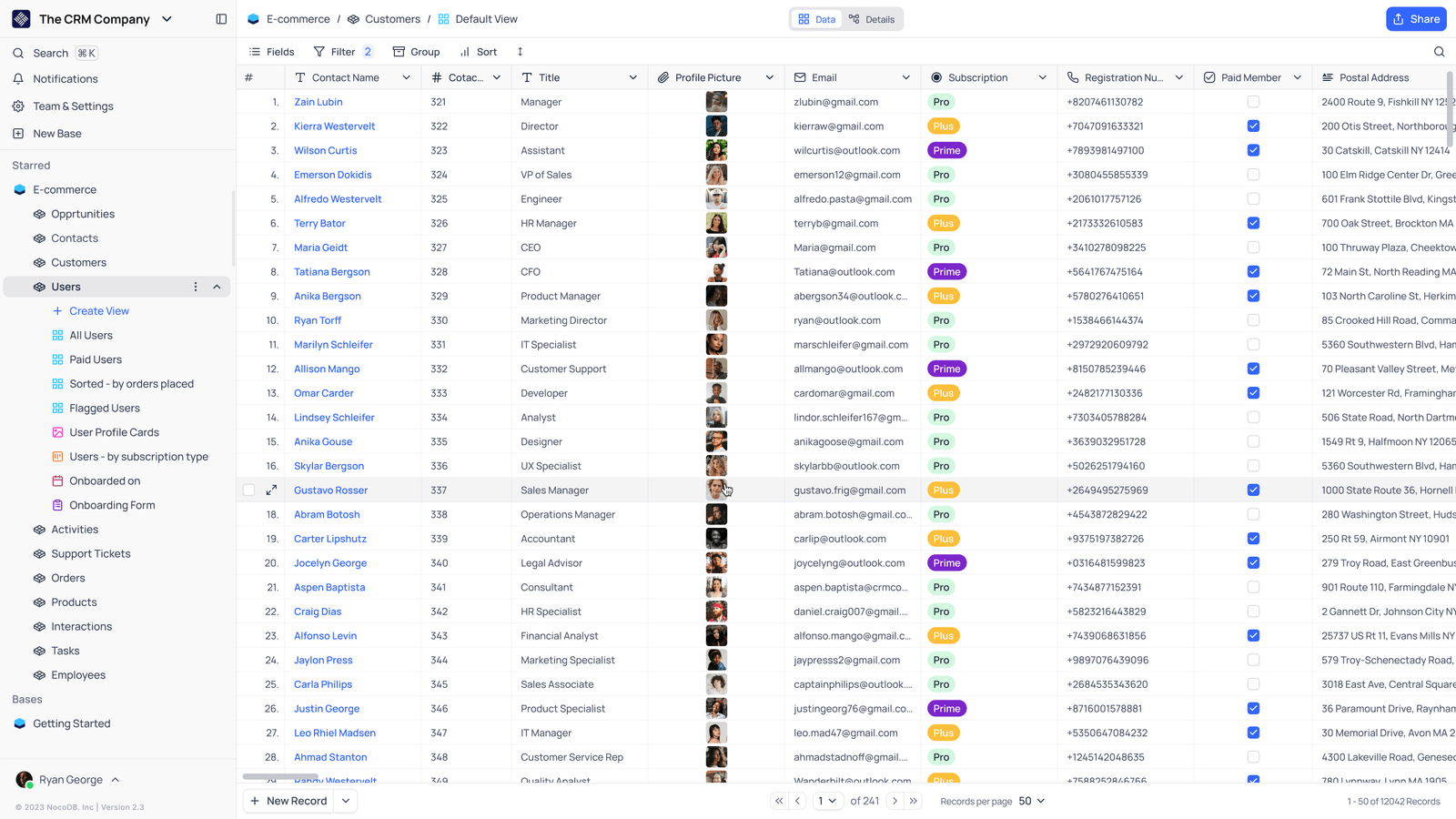
- Saved viewsThe vendor image shows several named views in the left navigation.
- Grid controlsFields, filtering, grouping and sorting appear above the record grid.
- Typed columnsThe example includes text, email and labelled select values. Check the current edition for availability.
Check the facts and their boundaries.
Official documentation supports the product statements. The evaluation procedures and synthetic examples are editorial guidance. We have not independently run the installation, migration or recovery procedures described here.
Current form builder and edition-labelled options; not proof of permission configuration. Reviewed 2026-11-01.
Presentation and view-configuration permissions; not a substitute for data-access controls. Reviewed 2026-11-01.